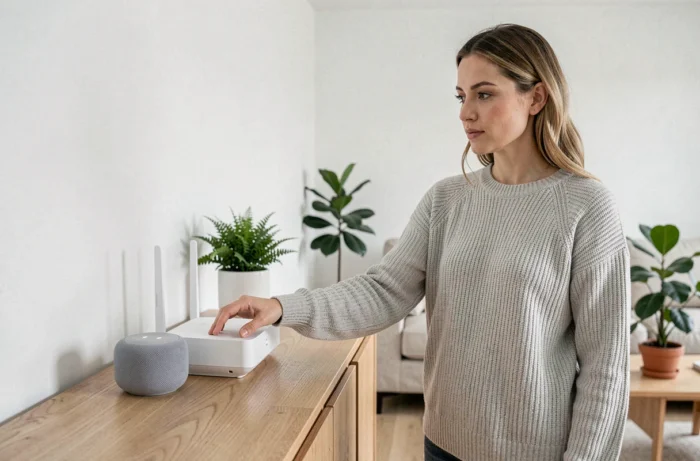
We connect the Freebox Pop, launch Google Home on the phone, and when trying to control the living room lights from the couch, nothing happens. The Free player responds well to TV voice commands, but the smart home devices remain silent. The problem rarely stems from the hardware: it’s the way the two ecosystems communicate that causes issues.
Shared Wi-Fi network between Freebox Pop and Google Home: the invisible prerequisite
Before any configuration, we check a point that many overlook. The Freebox Pop broadcasts two Wi-Fi bands by default (2.4 GHz and 5 GHz). Google Home speakers and Nest Minis connect almost exclusively on 2.4 GHz, while the Free 4K Player prefers 5 GHz.
If the SSID is unified (same name for both bands), the Freebox router manages the assignment automatically. However, if we have manually separated the two bands in the Freebox settings, all Google devices must be on the same network as the player. This can be checked in the Freebox OS interface, under the Wi-Fi section.
A band mismatch between the Google speaker and the player prevents device discovery in the Google Home app. This is the number one cause of pairing failures, and feedback on this point varies depending on the housing configuration and wall thickness.
For those who want to pair Google Home and Freebox Pop smoothly, this network check takes two minutes and saves hours of debugging.
Free 4K Player as Google Assistant hub: what it changes practically
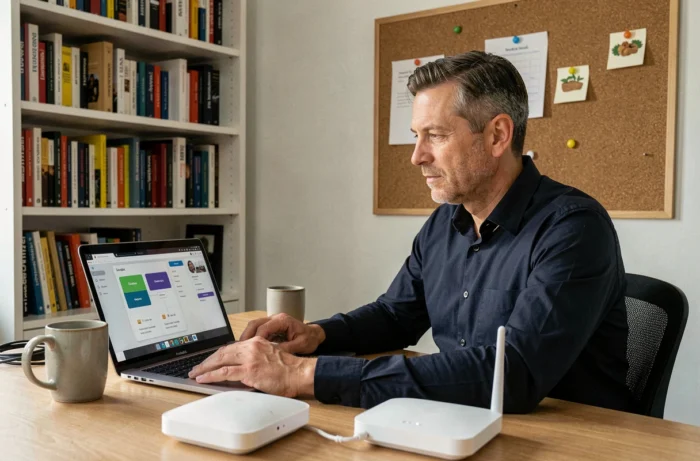
The Free 4K Player of the Freebox Pop runs on Android TV with Google Assistant natively integrated. Chromecast is also built-in. In practice, this means that we already have a Google Home device in the living room without having purchased any speakers.
From the player’s remote, a long press on the Assistant button allows us to issue voice commands. We can ask it to play a playlist, lower the volume, or launch an app. The experience is quite similar to what a recent Chromecast with Google TV offers.
Adding the player in the Google Home app
The player automatically appears in Google Home if the Google account linked to the phone is the same as the one configured on the player. If not, we open the Google Home app, go to the devices section, and select the player to integrate it into a room.
Assigning the player to the correct room in Google Home then allows us to group commands. When we say “OK Google, turn off the living room,” the player, the connected lights, and the smart plugs assigned to that room respond together.
Matter devices and Google Home: the equipment strategy to adopt
In addition to the Freebox Pop, the choice of smart home accessories has evolved significantly. Matter is now natively supported by Google Home, which radically simplifies the addition of devices. We scan the product’s QR code, Google Home recognizes it, and there’s no need for a skill or third-party app.
Manufacturers offering Matter-compatible ranges include:
- Philips Hue, whose recent bridges have received a Matter firmware update, making the bulbs controllable directly from Google Home
- TP-Link Tapo, with Matter plugs and bulbs available at low prices, ideal for starting out
- Aqara and IKEA, covering temperature sensors, connected blinds, and supplementary lighting
The concrete advantage of Matter for a Freebox Pop setup: it reduces the number of apps to install. No more juggling between the Hue app, the Tapo app, and Google Home. Everything is controlled from a single voice or touch interface.
Multi-admin Matter: control from Google Home and another ecosystem
Matter also introduces multi-admin. The same device (a bulb, a plug) can be controlled simultaneously by Google Home and another ecosystem like Apple Home. In a household where an iPhone and an Android phone coexist, this is a real gain in flexibility.
We add the second ecosystem via the device’s QR code. Each platform manages its own routines and automations independently, without conflict.
Google Home voice routines with Freebox Pop: automating daily life
Once the player, speakers, and Matter devices are in place, we move on to routines. In the Google Home app, a routine allows us to chain several actions with a single voice command.
A concrete example: the “Good Evening” routine can turn off the Freebox player, dim the living room lights to a minimum, lock a Matter-connected smart lock, and cut the power to devices on standby. We configure each action step by step in the Routines tab of Google Home.
Scheduled routines by time work without a voice command. We can trigger the gradual lighting of the lights every morning, without having to speak. The Freebox player can also automatically launch on a specific channel at a set time.
Useful voice commands to test
- “OK Google, play my playlist in the living room” starts the music via the built-in Chromecast in the player
- “OK Google, show the garden camera on the TV” displays the feed from a compatible Nest camera
- “OK Google, turn everything off” cuts power to the devices in the room where the speaker receiving the command is located
- “OK Google, set the temperature to 20 degrees” adjusts a Matter or Nest thermostat assigned to the room
The Freebox Pop and Google Home duo works best when we limit the number of rooms in the app to those we actually use. Creating a “Home Office” room with just one device in it makes less sense than intelligently grouping living areas. The reliability of voice commands directly depends on this logical organization in Google Home.